
1. Welcome & Overview
SmartCleno declutters your gallery so you can see the photos that matter.
Say goodbye to endless memes, blurry shots, and chat screenshots hiding your important pictures. SmartCleno uses a fast, on-device AI to find likely junk images (memes, screenshots, low-quality photos, duplicates) and groups them so you can review and remove them in just a few taps.
- ✨ Declutter with AI — Find and remove memes, chat screenshots, and blurry photos.
- 📁 Scan everything — Camera, Pictures, Downloads, WhatsApp, or any custom folder.
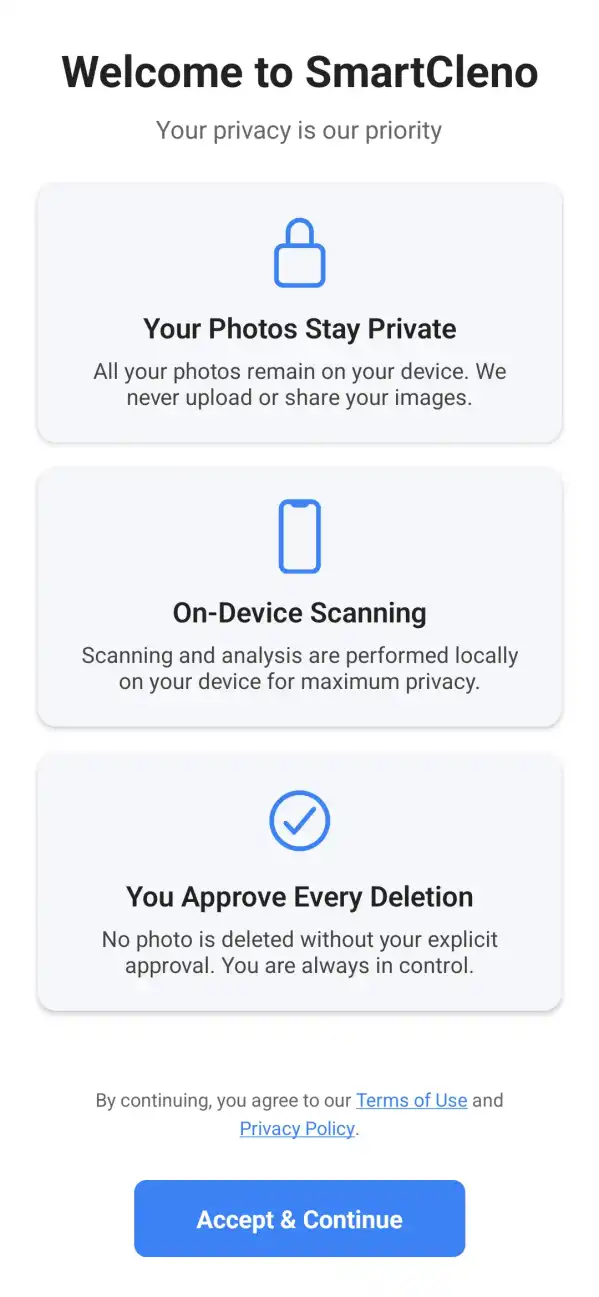
- 🔒 Private & local — All processing happens on your phone; nothing is uploaded.
- 👍 You stay in control — Review and confirm every delete; use Save to protect images.
- 🚀 Free up storage — Quickly reclaim space and speed up your phone.
2. Quick Start Guide
Typical quick flow to clean up your gallery:
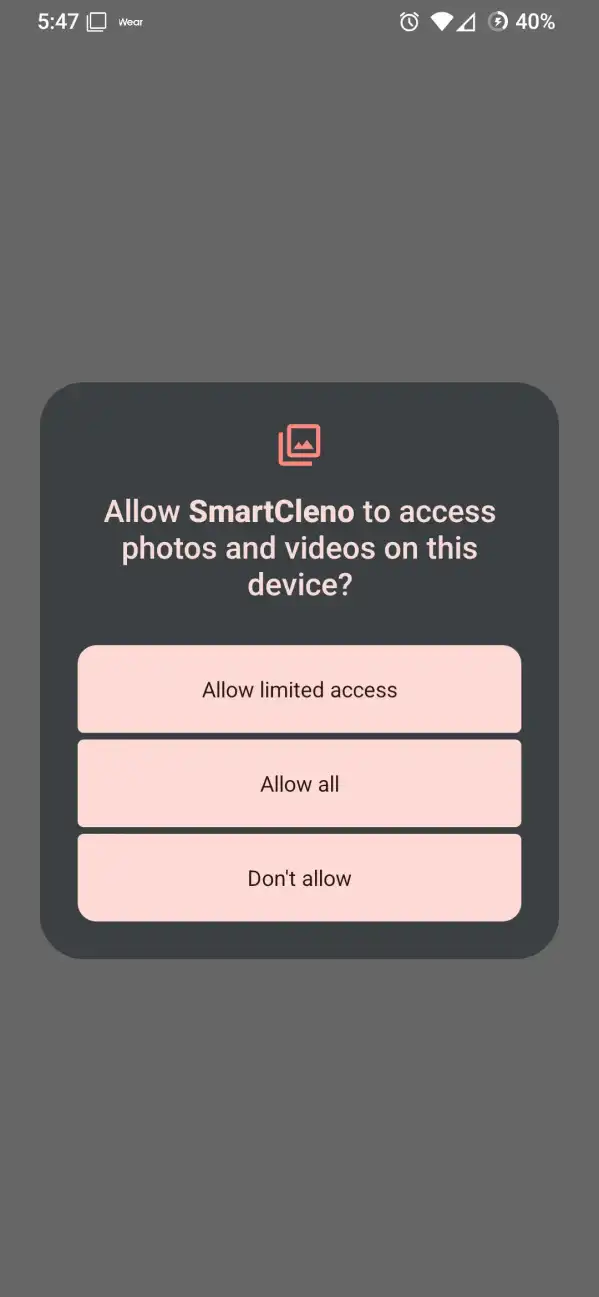
- Grant storage permission when prompted. SmartCleno needs access to your media to scan and delete files you approve.
- Start a scan: Use Quick Scan for common folders or choose Photos, Camera, WhatsApp, or Custom for targeted scans.
- Review and decide: Open Review to see AI-flagged images in a grid. Tap to preview full-screen, then Save (protect) or Delete.
- Manage saved items: Use Saved images to view protected photos and undo protection if needed.
3. Permissions Explained
SmartCleno requests a few permissions to work properly:
- Storage Permission
- Allows the app to scan and delete files you choose. Required for scans and deletes to work.
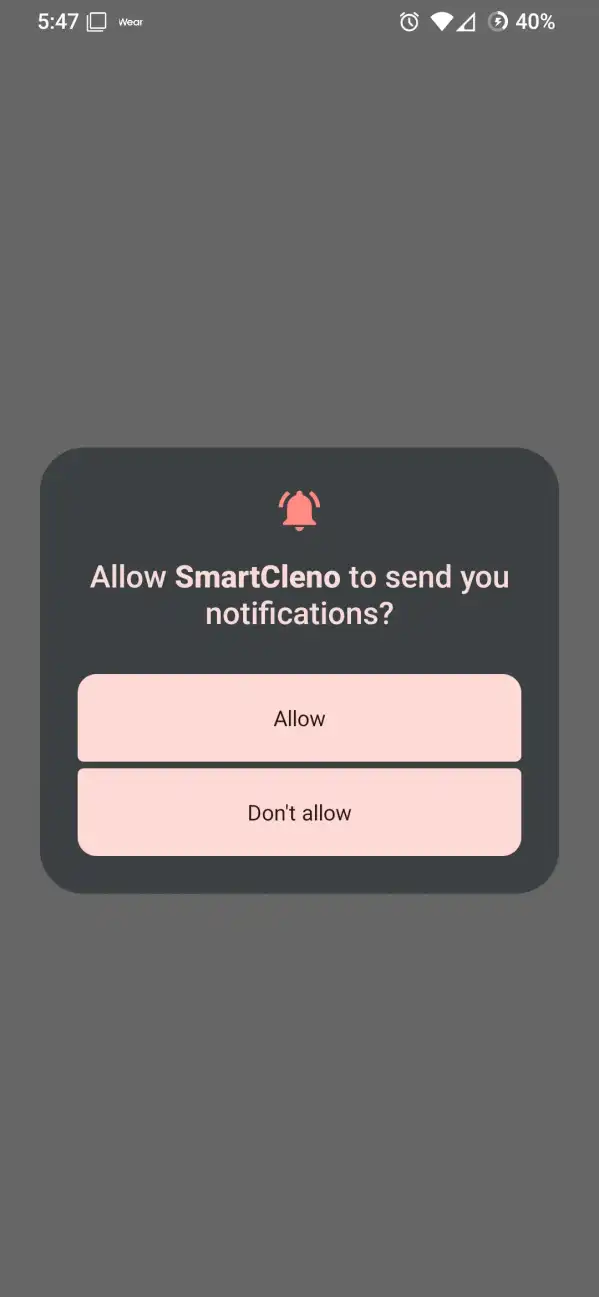
- Notifications
- Used to notify you when a background scan is in progress and finishes.
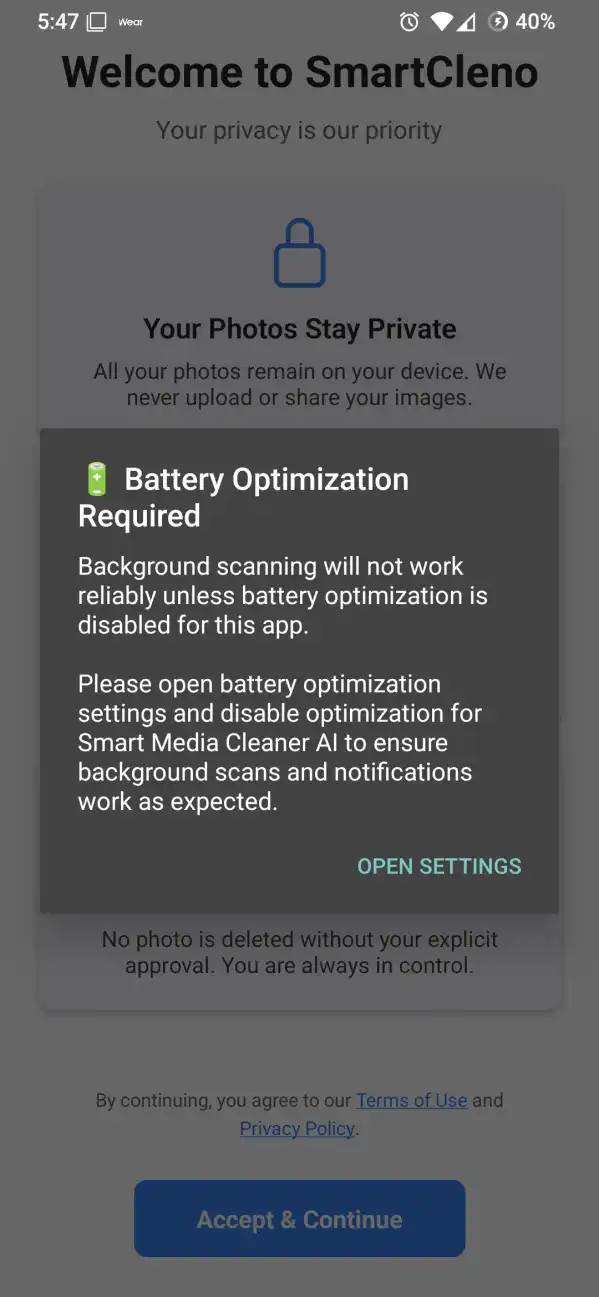
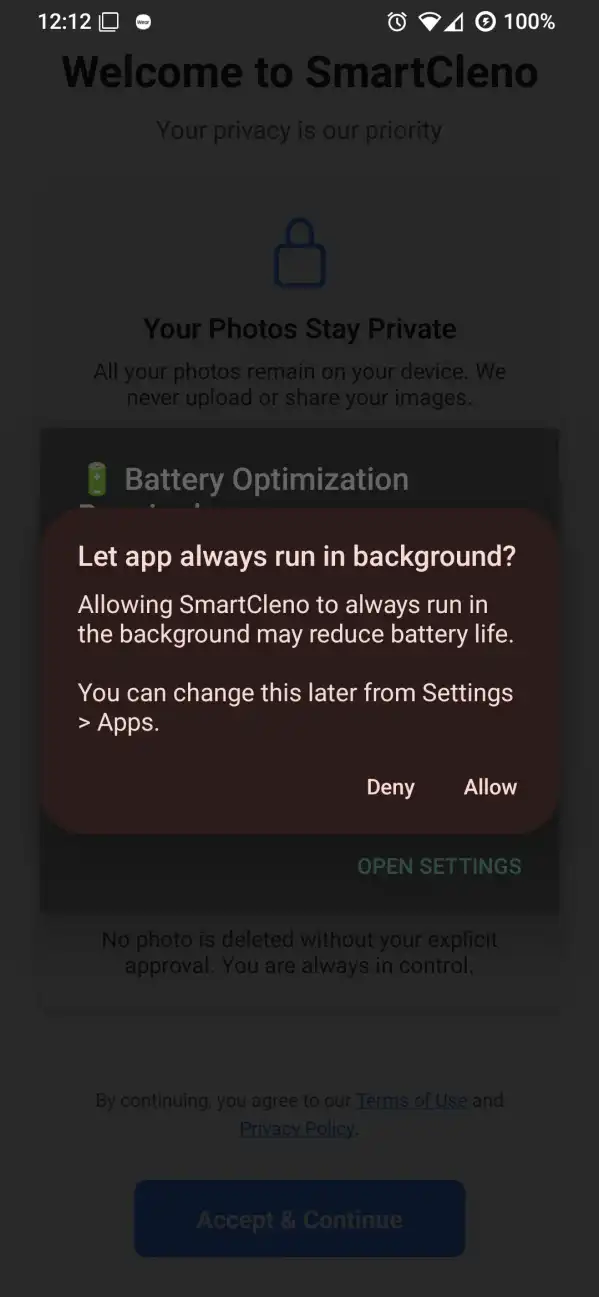
- Background Access & Battery Optimization
- Allows smoother background scans. If not granted, scans still work manually from the app, less reliably.
4. Features
SmartCleno provides tools to help you manage your media library.
4.1 Home Screen
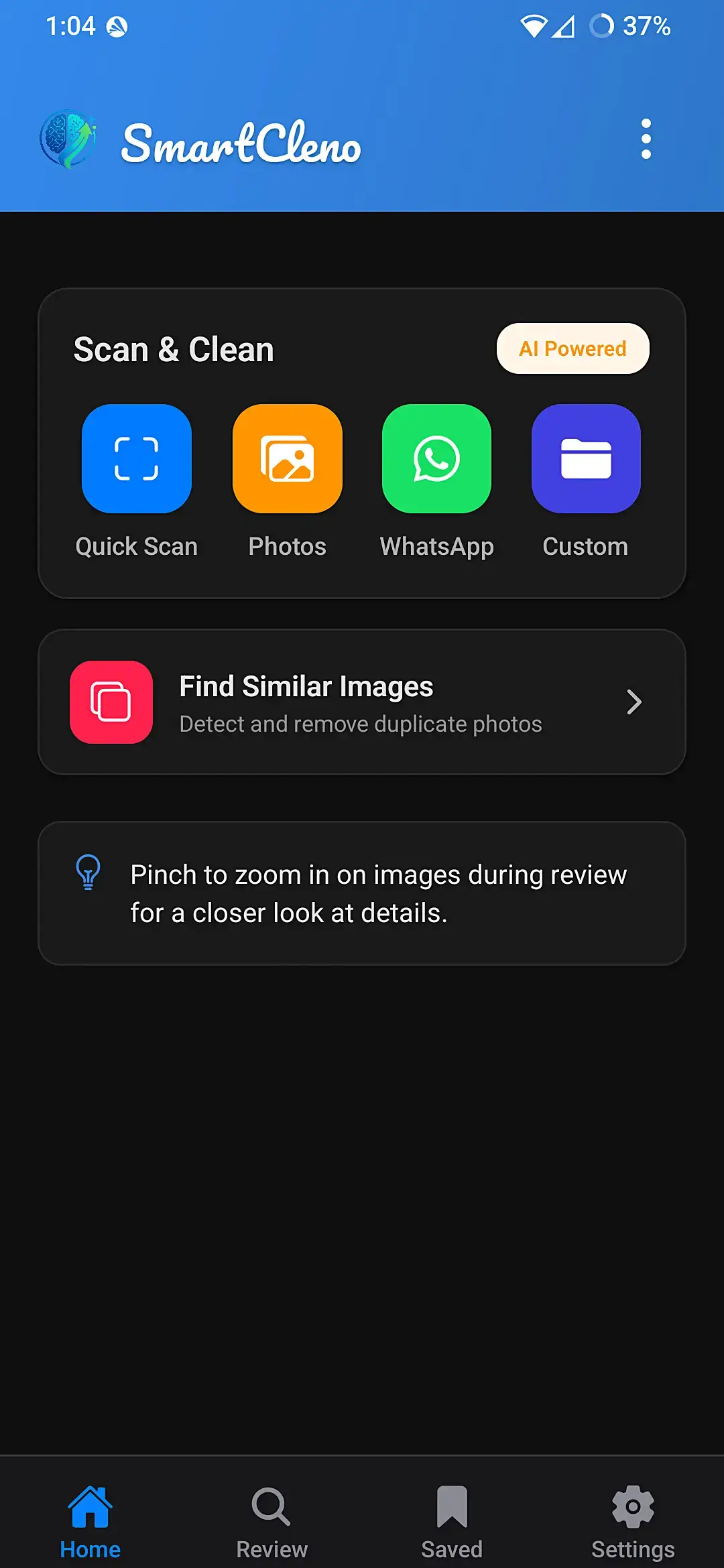
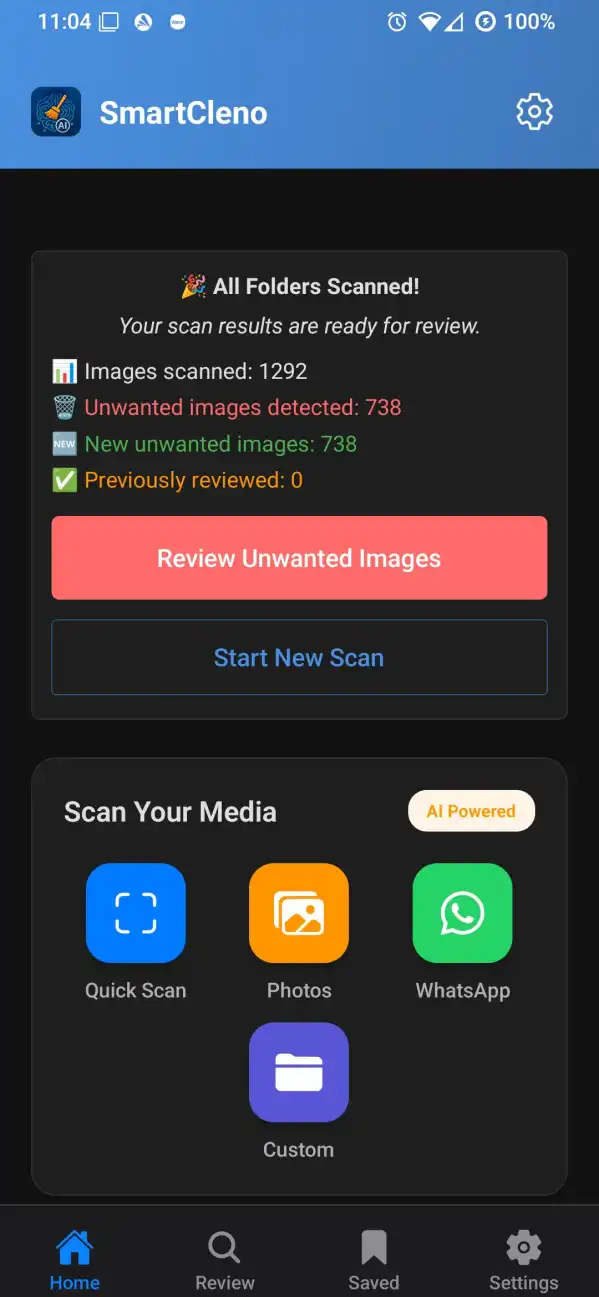
The Home screen is the app's launchpad. Buttons you will commonly use:
- Quick Scan — Scans Camera, Pictures and Downloads in one go.
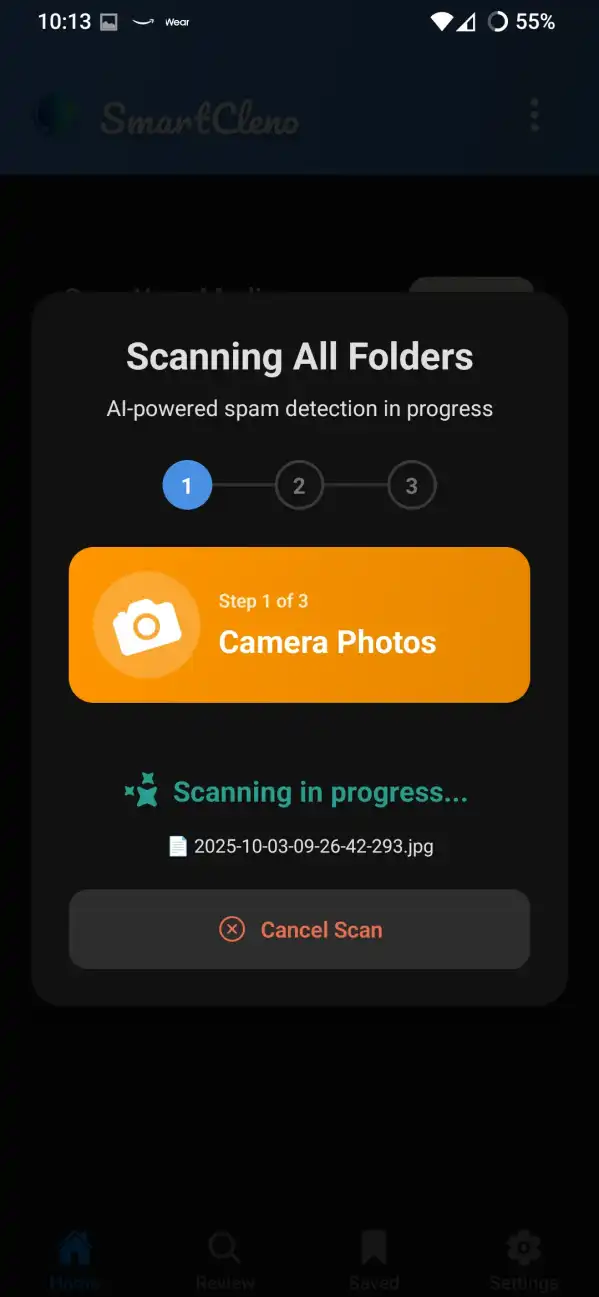
- Scan All Common Folders — Comprehensive scan that checks all your main photo folders with step-by-step progress.
- Photos / Camera — Scan or browse camera and pictures folders individually.
- WhatsApp — Clean up WhatsApp media with automatic folder detection.
- Custom — Pick any folder on your device to scan.
- Similar Images — Find and remove duplicate or nearly identical photos.
Quick access to Review, Saved images, and Settings is available from the Home screen.
4.2 Scanning
When you start a scan the app:
- Finds image files in the selected folder(s).
- Applies quick quality checks and the on-device AI model.
- Groups likely junk images for review.
- Shows results in the Review screen for you to accept or reject.
Large folders with thousands of images can take hours to scan completely. For the best experience:
- Small folders (under 1,000 images): Scan normally - should complete in minutes
- Large folders (thousands of images): Consider overnight scanning with your device plugged in
- Huge collections: Use session-based cleanup - scan, review, delete, then scan again
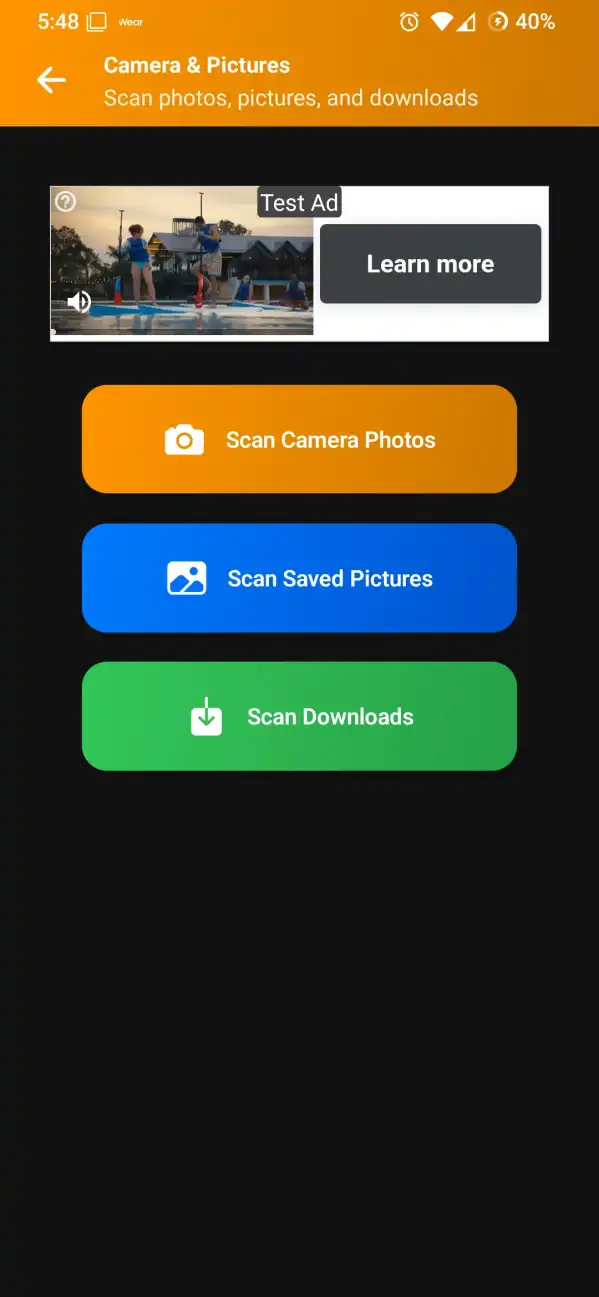
Photos Scan
Use the Camera, Pictures or Downloads options to scan common folder images separately for finer control.
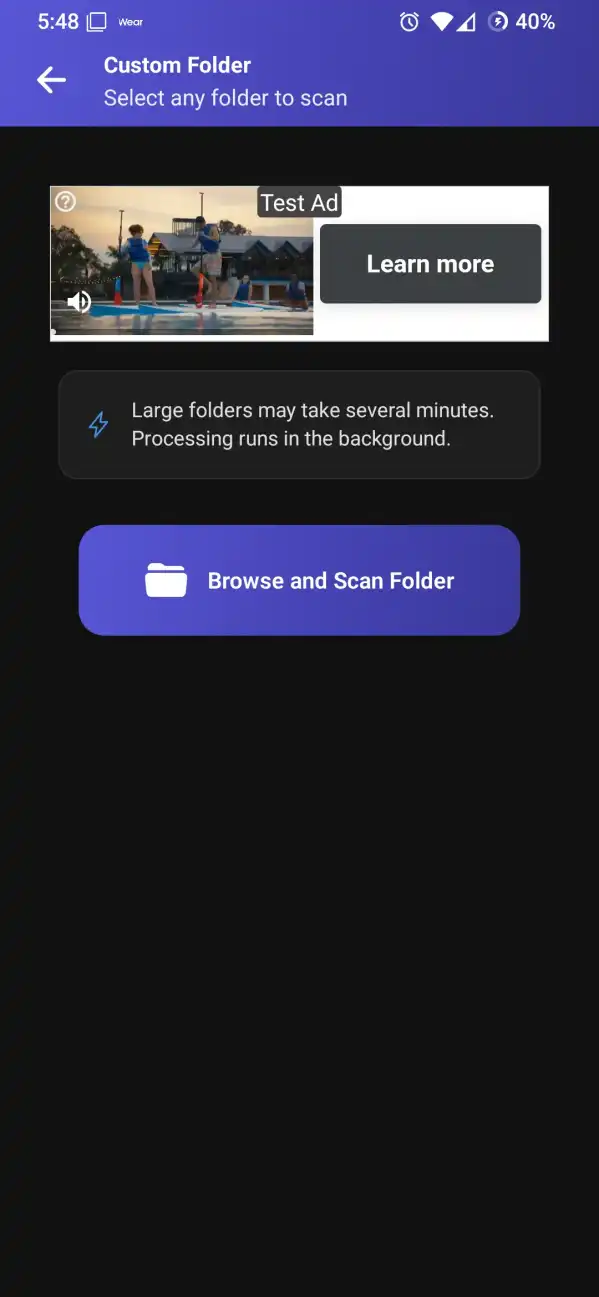
Custom Folder
Select any folder you like. The app will request permission for that folder and then begin scanning. Large custom folders behave the same as WhatsApp/Camera scans.
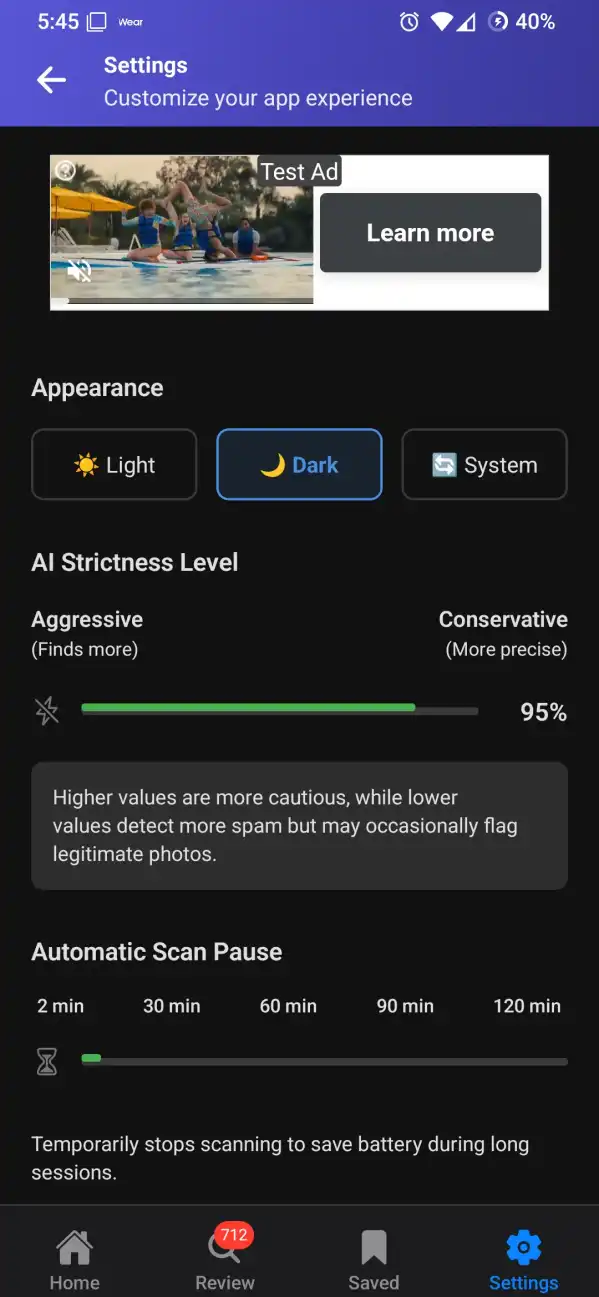
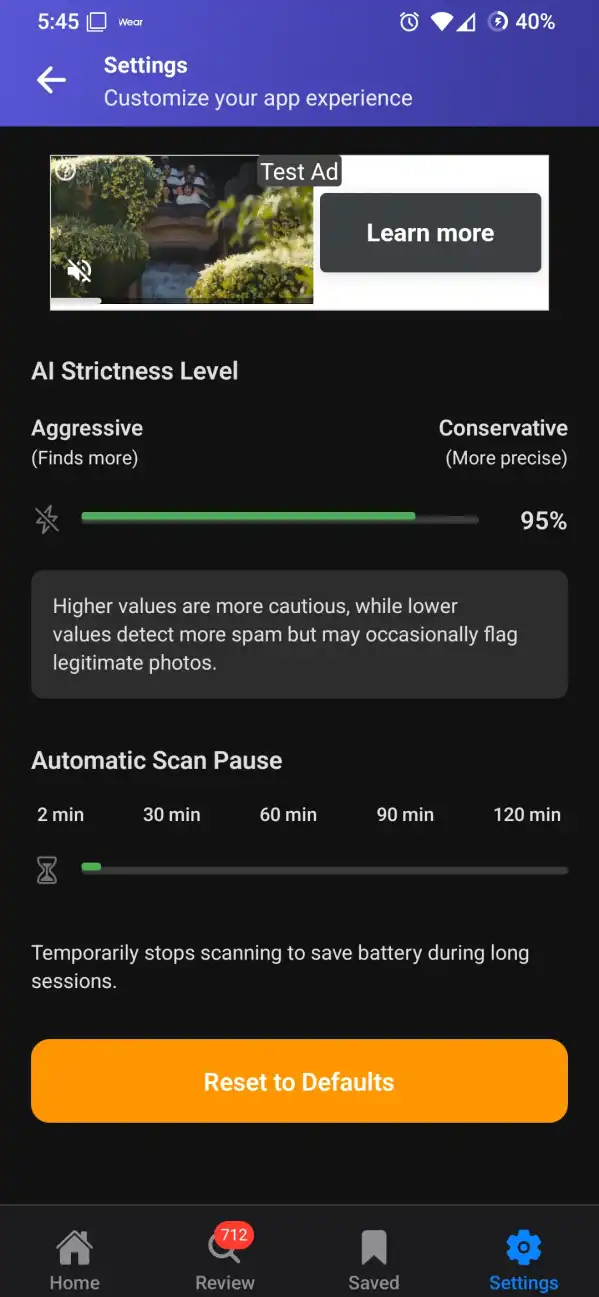
4.3 AI Strictness
Control how aggressive the AI is using the AI Strictness setting.
- Range: 75% to 98%.
- Default: 95% (balanced - fewer false positives by default).
- Lower value = more candidates (more false positives). Higher value = fewer candidates (may miss some junk).
4.4 Review & Delete
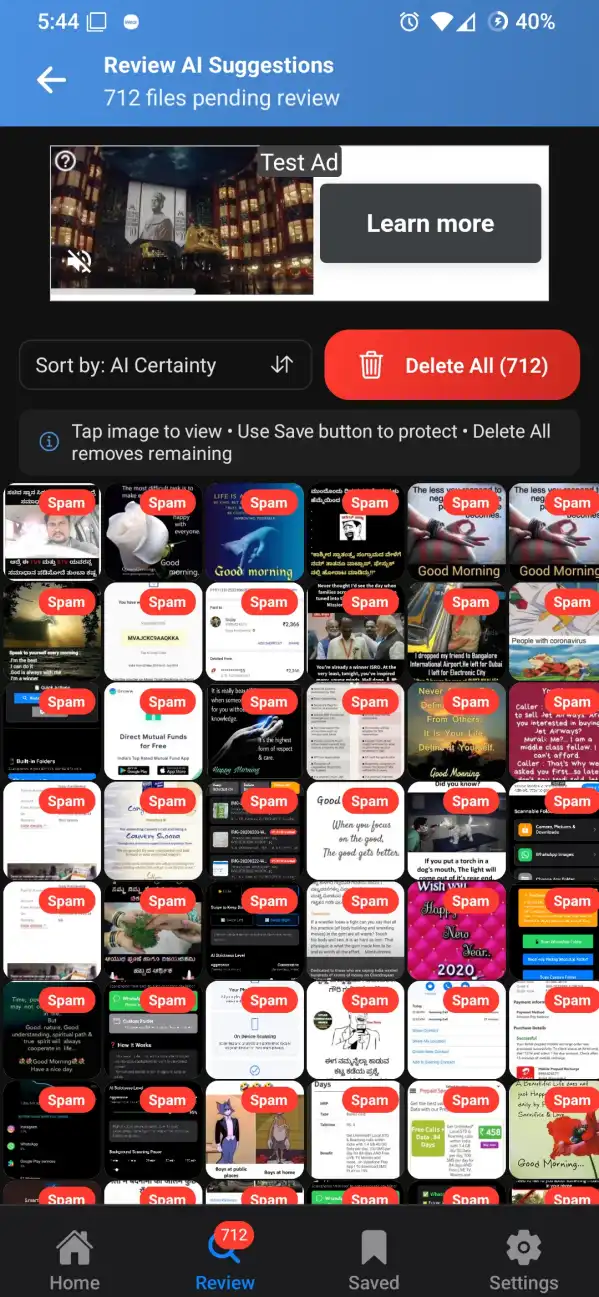
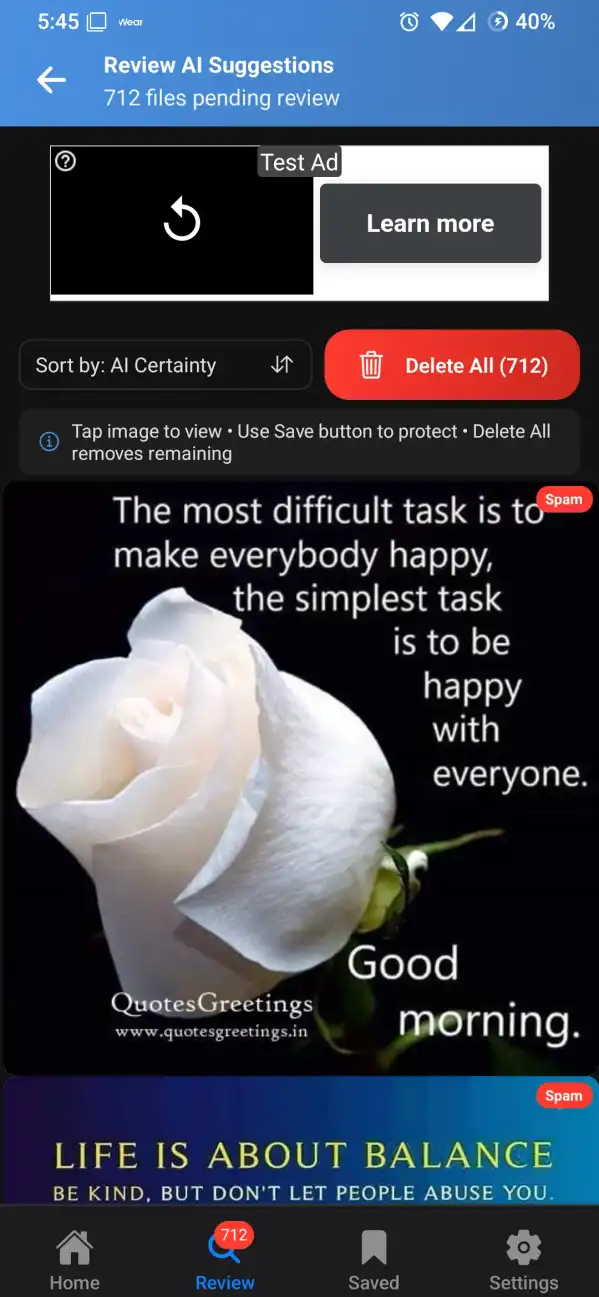
The Review screen shows the AI's suggestions in a grid thumbnail view. Common actions:
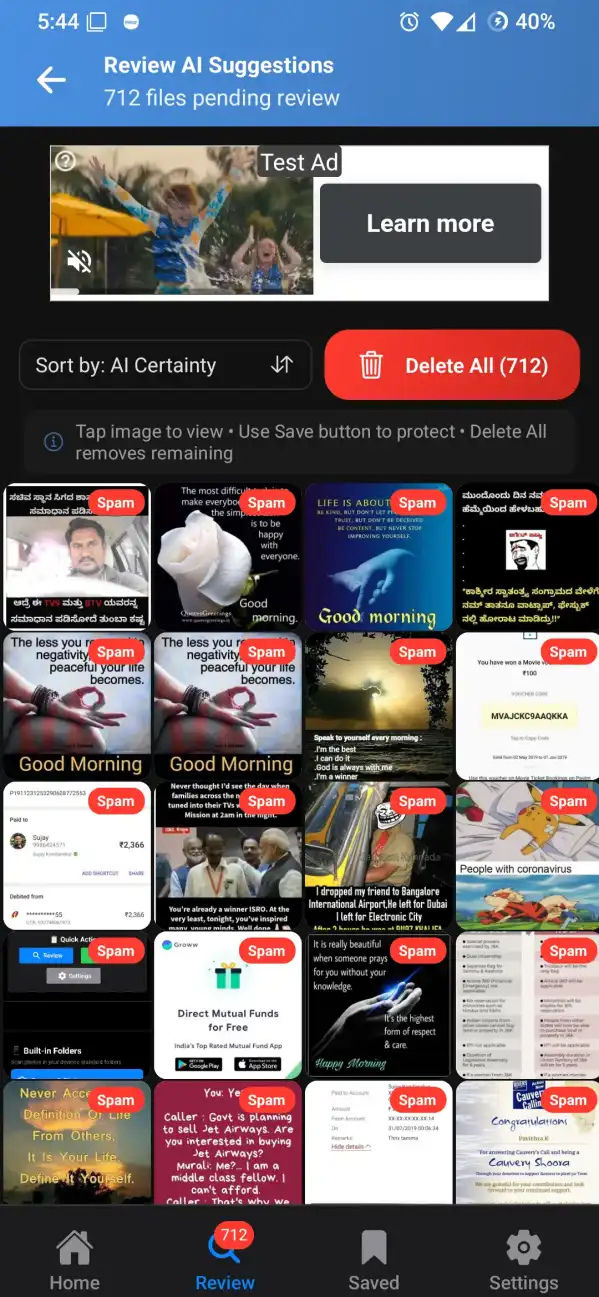
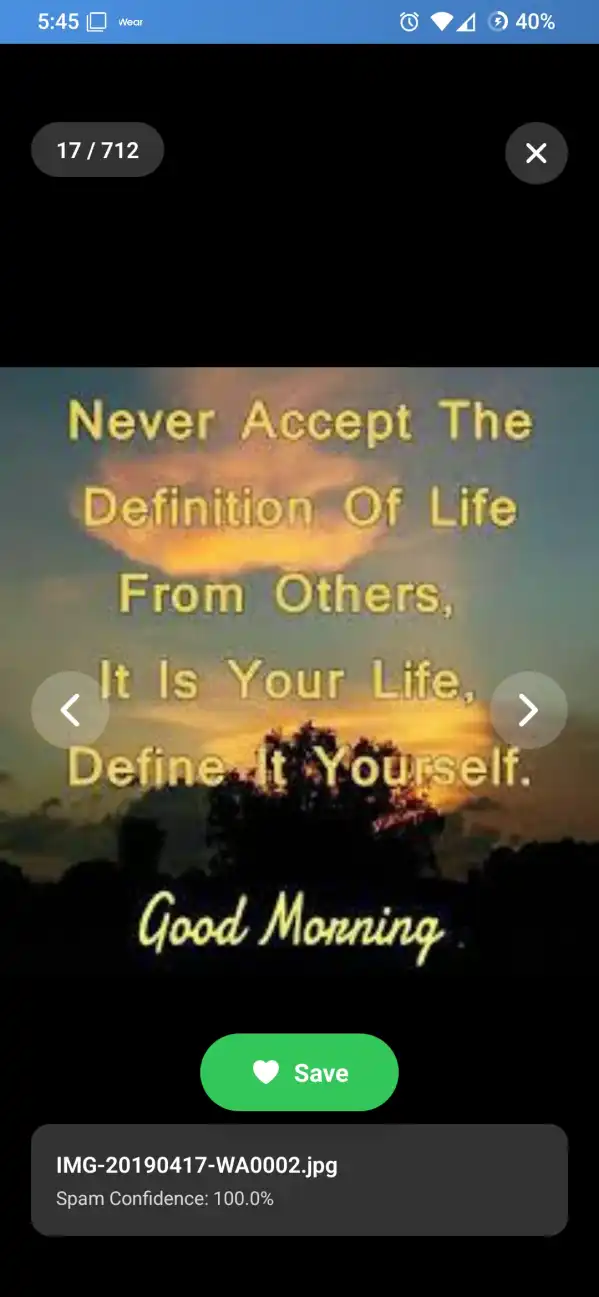
- Preview: Tap a thumbnail to open fullscreen. Use next/prev or swipe to move between images.
- Save: Protect an image — it moves to Saved images and won't be removed by bulk delete.
- Delete All: Remove all remaining suggestions after confirmation.(Android will ask permission during deletion)
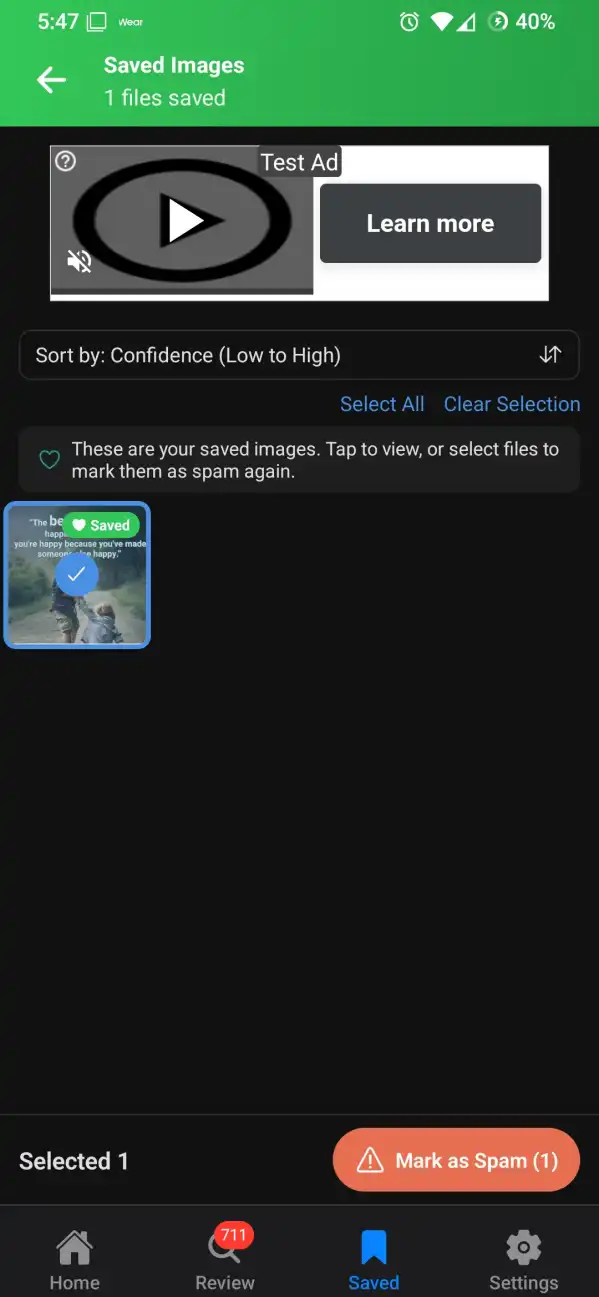
4.5 Saved Images
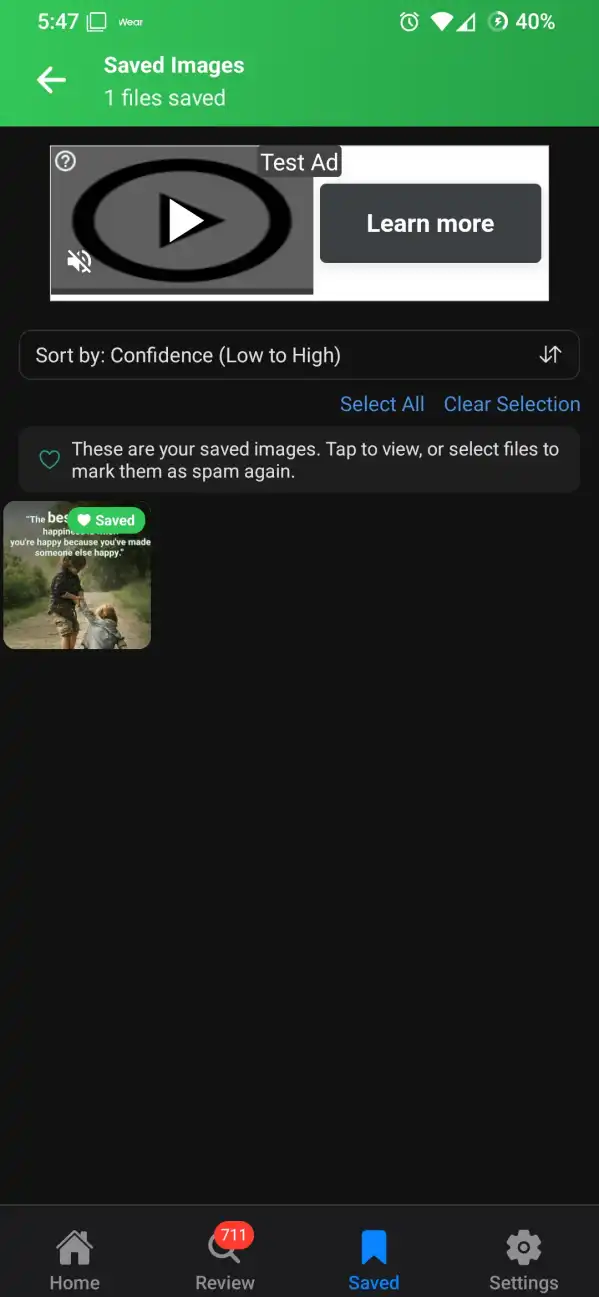
Saved images are the photos you protected during review. They are excluded from bulk deletion. From this screen you can sort, select multiple items, and re-mark items as spam if needed.
4.6 WhatsApp Scanning
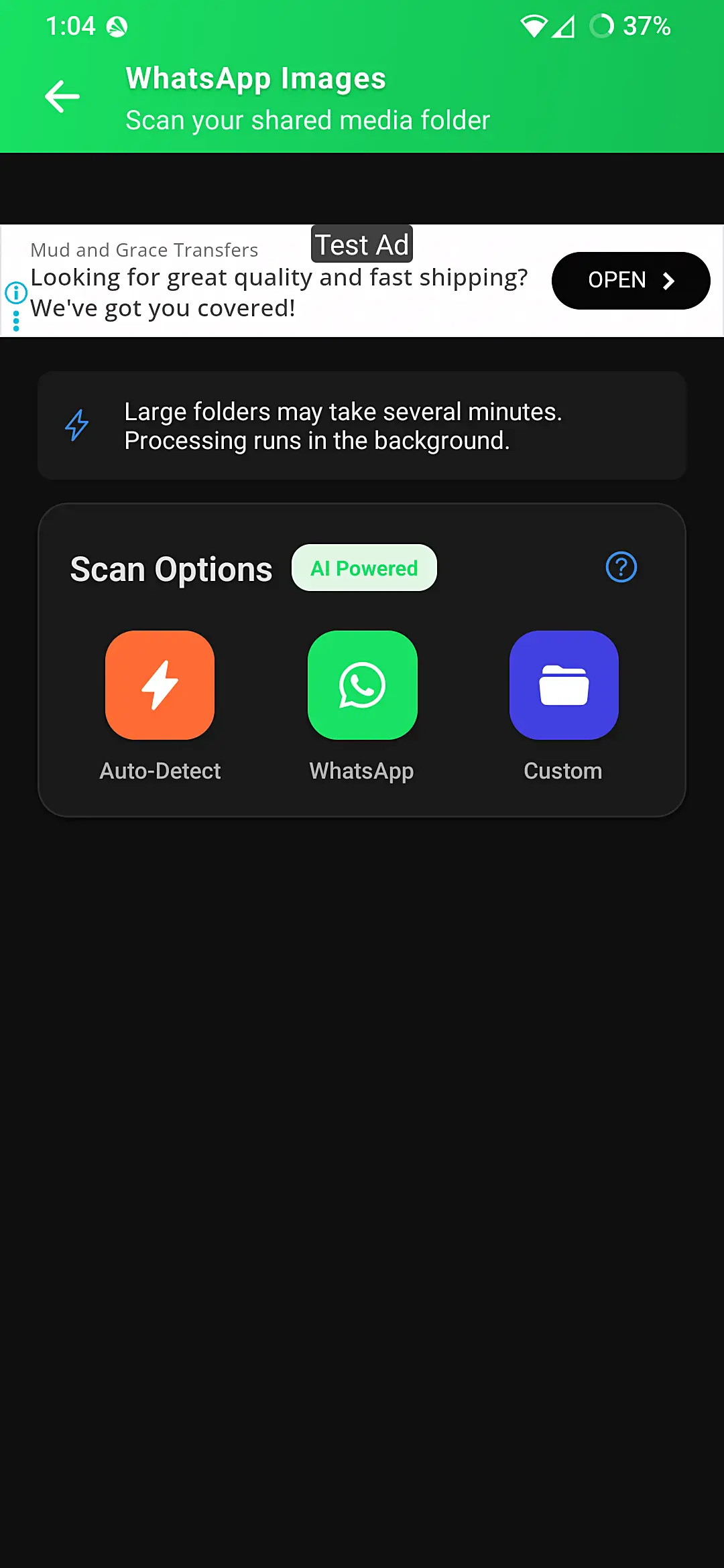
WhatsApp folders often contain the most clutter. SmartCleno makes it easier to clean them up:
- Automatic Detection: The app finds your WhatsApp media folders automatically - no need to search through complex folder structures.
- Tap Scan WhatsApp Folder to start cleaning.
- If needed, you can still manually select folders using the file picker.
- Review the results in the Review screen when scanning completes.
- Overnight scanning: Connect your device to a charger and start the scan before bed
- Session-based cleanup: Scan a few thousand files, review and delete, then restart the scan
- Regular maintenance: Clean your WhatsApp media weekly to keep scan times short
4.7 Similar Images & Duplicates
Find and remove duplicate photos to free up even more space:
- Exact Duplicates: Finds identical copies of the same photo.
- Similar Images: Detects photos that are nearly the same (like burst shots or slightly different crops).
- Easy Comparison: View images side-by-side to choose which ones to keep.
- Bulk Actions: Delete multiple duplicates at once.
To use this feature:
- Tap Similar Images from the Home screen.
- Browse through groups of similar photos.
- Tap images to view them full-screen.
- Choose which photos to keep and which to delete.
4.8 Comprehensive Folder Scan
The Scan All Common Folders button provides a thorough cleanup experience:
- Complete Coverage: Scans your Camera, Pictures, and Downloads folders in one go.
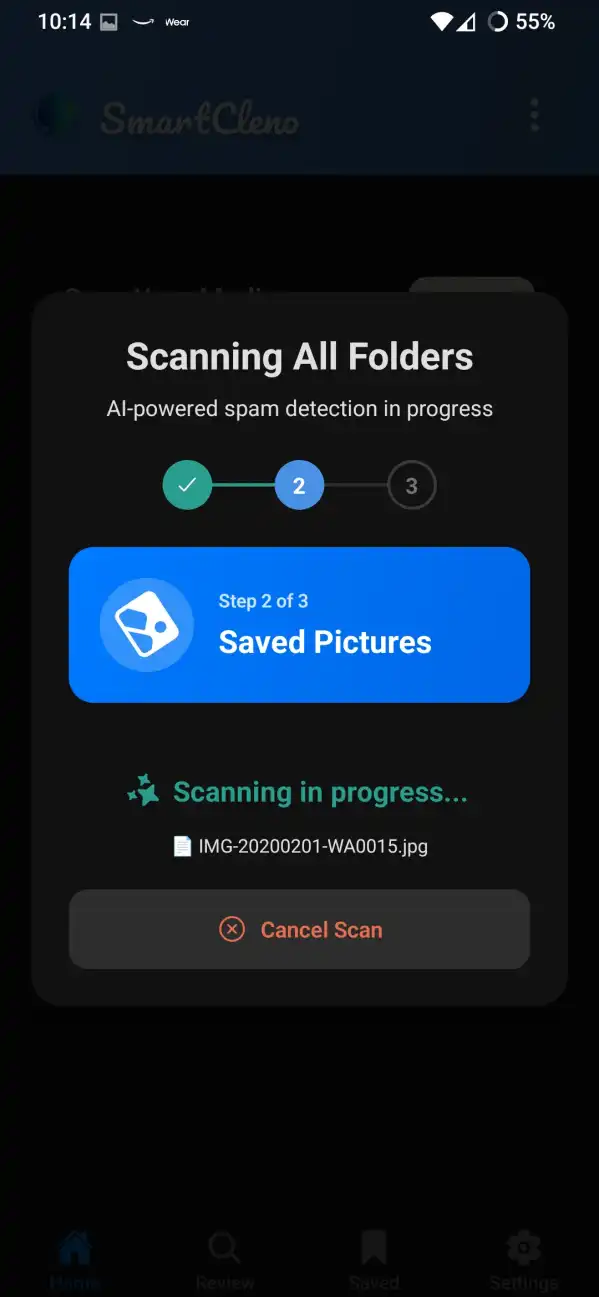
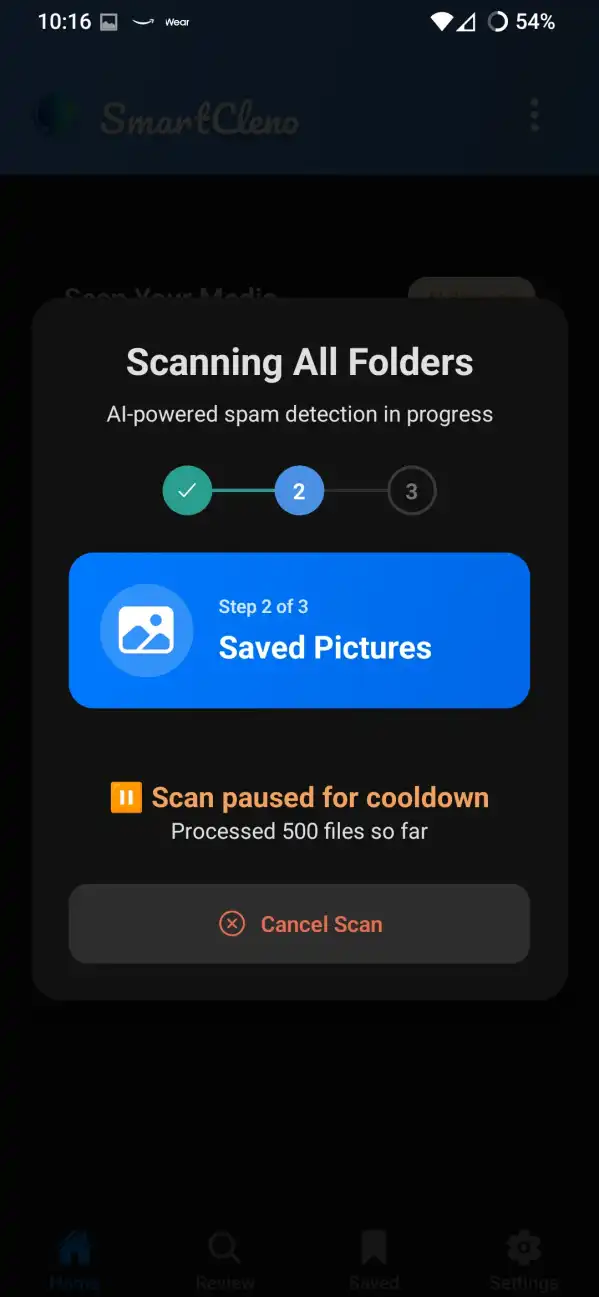
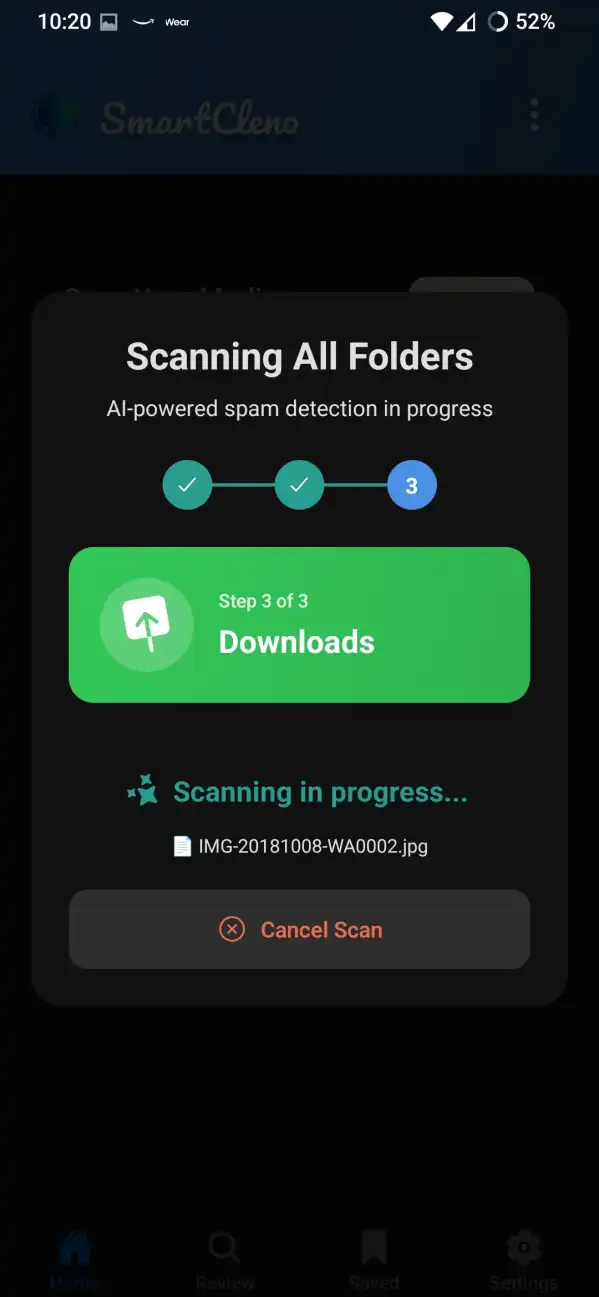
- Step-by-Step Progress: Shows which folder is being scanned (Step 1 of 3, Step 2 of 3, etc.).
- Combined Results: Get a summary of everything found across all folders.
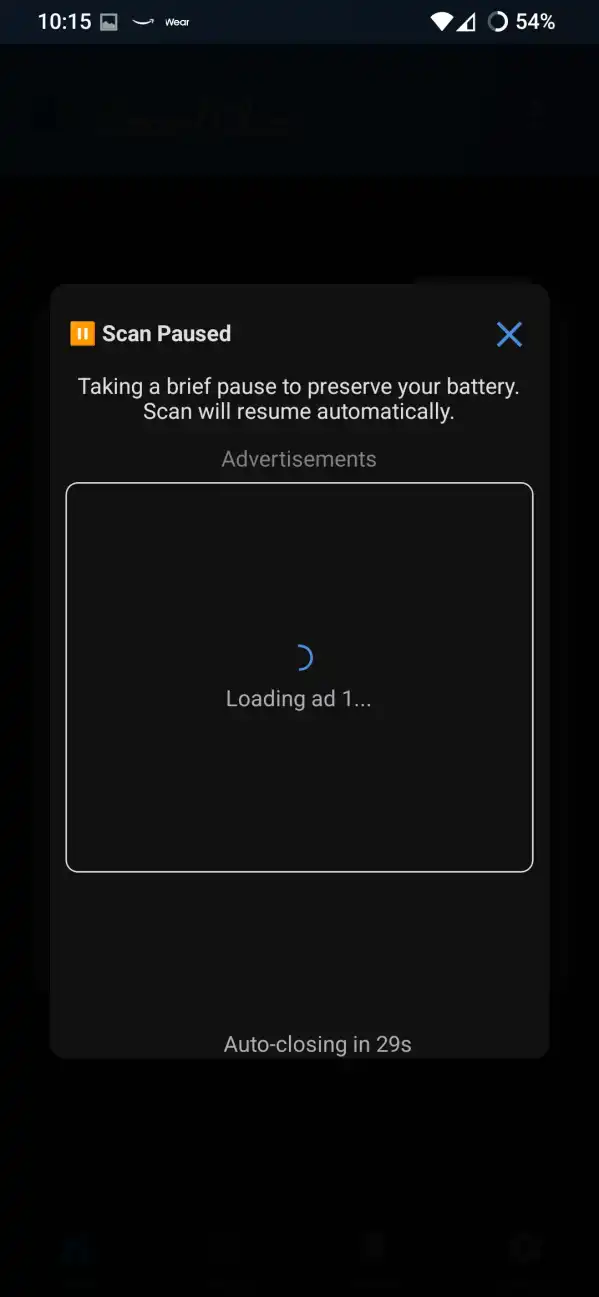
- Pause-Friendly: Automatically handles breaks to keep your phone running smoothly.
During the scan, you'll see:
- Which folder is currently being processed
- Progress for the current folder
- Option to cancel if needed
5. Settings Reference
- Appearance
- Choose Light, Dark, or System theme.
- AI Strictness
- Range 75%–98%, default 95%. Lower = more candidates, higher = fewer false positives.
- Automatic Scan Pause (cooldown)
- Controls how long the app pauses between background scan batches to save battery and reduce device heat. Default: 2 minutes per 500 files scanned (adjustable).
- Battery Optimization
- Helps ensure background scans work smoothly by managing Android's battery optimization settings. The app will guide you through optimizing these settings if needed.
- Scan Reminders
- Get gentle reminders to clean your gallery when it's been a while since your last scan. Helps keep your photos organized without being pushy.
- Reset to Defaults
- Restore all settings to their original values.
6. Troubleshooting
- Scans not running or stopping unexpectedly
- Check battery optimization settings for the app. SmartCleno will help guide you through optimizing these settings. You can also start scans manually from the app.
- WhatsApp folder not found automatically
- If automatic detection doesn't work, you can still manually select your WhatsApp folder using the file picker. Look for folders named "WhatsApp" in your device storage.
- Scan taking too long or phone getting hot
- For large folders with thousands of images, connect your device to a charger and let it scan overnight. Alternatively, use session-based cleanup: scan a portion, review and delete results, then restart the scan. Regular weekly scans prevent massive cleanups.
- Similar images feature not finding duplicates
- The feature works best with clear, well-lit photos. Very dark, blurry, or heavily edited images may not be detected as similar. Try running the scan again or check your AI Strictness setting.
- App crashes or behaves oddly
- Restart the app and ensure there's enough free storage (100 MB+). Reinstall if problems persist.
- Deleted file cannot be recovered
- Deletion is permanent unless you have a separate backup. Use Save to protect images you want to keep.
- Missing thumbnails or images
- Re-run a folder scan to rebuild thumbnails. The file may have been moved or deleted outside the app.
7. Privacy & Data
Your privacy matters. SmartCleno processes images locally on your device. No photos are uploaded to our servers.
- On-device processing: All image analysis runs on your phone.
- No uploads: Photos and thumbnails are not sent to the cloud for analysis.
- Local data only: The app stores local scan history and saved-image markers only.
Policies: Privacy Policy • Terms of Use
8. Frequently Asked Questions
- Is my media uploaded anywhere?
- No — all analysis happens on-device.
- How accurate is the AI?
- Accuracy depends on content and the AI Strictness setting. Review suggestions before deleting.
- Can I undo a deletion?
- Not from inside the app; only device backups or recycle-bin features can restore deleted files.
- Does the app work offline?
- Yes. No network is required for scanning or review.
- What's the difference between similar images and duplicates?
- Duplicates are identical copies of the same file. Similar images are photos that look alike but may have different sizes, crops, or slight edits.
- Why does the comprehensive scan take longer?
- It scans multiple folders thoroughly and includes breaks to keep your phone running smoothly. You can cancel anytime if needed.
- How long does scanning take?
- Small folders (under 1,000 images) typically scan in minutes. Large WhatsApp folders with thousands of images can take hours. For massive collections, we recommend overnight scanning with your device plugged in, or breaking the cleanup into multiple sessions.
- How often will I get scan reminders?
- Only when it's been a while since your last cleanup - the app won't spam you with notifications.
9. Contact & Support
Need help or want to report a bug? Provide feedback on the PlayStore. You may contact us using information in the privacy and terms of use pages.